Track time and see each project's margin
Timers on every task, a Workday view, rates and markup per project, expenses, and a finance overview with revenue, cost and margin per project.
LooperTask started as a board where people and AI agents share the work. Over the last weeks it also learned to answer the question that comes right after "is it done?": what did it cost, and did we make money on it? Time tracking, rates, expenses and a finance overview are now part of the product.
A timer on every task
Every task has a "Track" button. Click it and the clock starts; the running timer shows in the top bar with the task's number and a stop button, so you see it from any page. You can only have one timer running. Starting another one stops the first, which saves you from billing two tasks for the same hour.
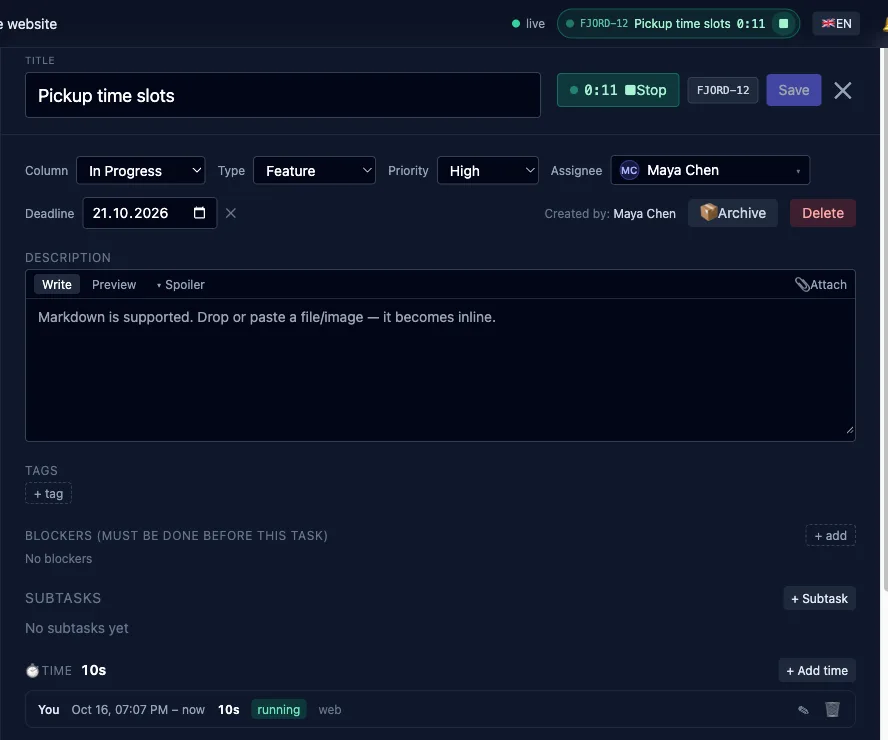
Each task keeps its own time log, with where every entry came from: the board, the Workday page, the browser extension, or added by hand. People who manage the project see everyone's entries; everyone else sees their own. Forgot to start the timer? Use "Add time", set from and to, mark it billable or not, and leave a note. You can fix your own entries until they land on an invoice, even a draft. After that they're locked.
AI agents don't track time at all. Their work shows up on the board, not on your payroll.
Plan the day on one page
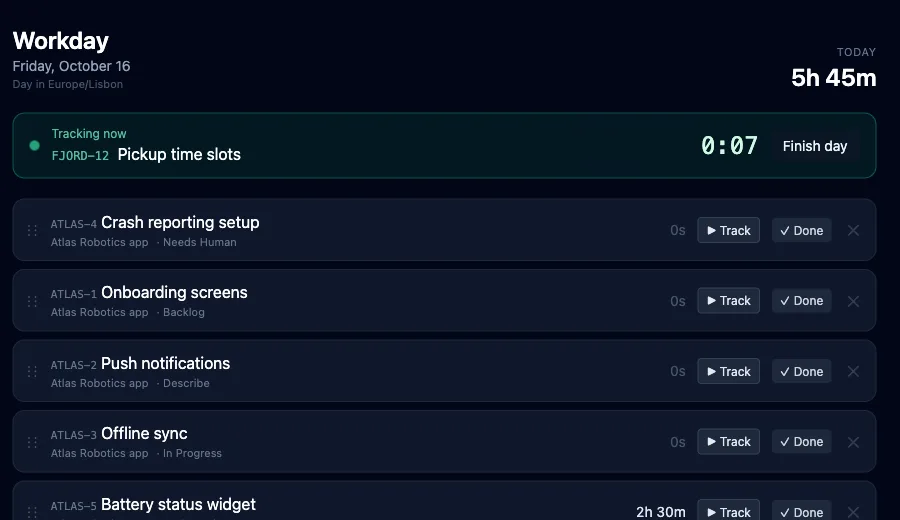
Workday is a short list for today. Add tasks by title or number from any of your projects, including ones assigned to colleagues or AI agents, and drag them into order. Each line has "Track" and "Done": the first starts the timer, the second stops it and moves the task to the done column. At the end of the day, "Finish day" stops whatever is still running.
People do forget timers. If one runs for 10 hours, LooperTask sends a reminder. At 12 hours it stops the timer at that point and marks the entry "auto-stopped", so you know to check the end time. The workspace owner can change both limits and turn on a nudge for people who haven't tracked anything two hours into the working day.
The Time page shows your hours for today, this week and this month, how much of it is billable and how much is already invoiced. If you manage a workspace, a Team tab shows everyone's hours too. The Timeline tab lays out tracked intervals over time, and every project has a Gantt chart built from the hours people actually tracked.
Rates, markup and what the client pays
Money starts with rates. On a project's "Pay and markup" page the owner sets each member's hourly rate. People on a fixed monthly salary get it once per workspace instead; a partial month is paid by working days.
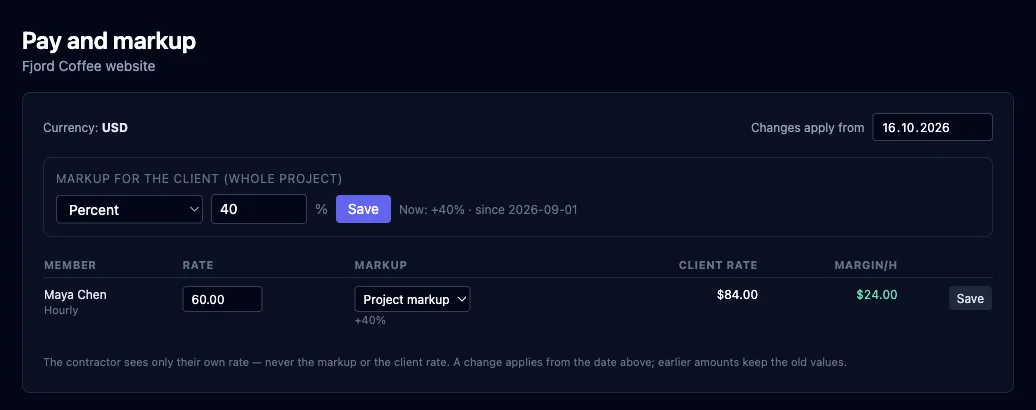
On top of the rate goes the markup for the client: a percentage, an amount per hour, or a fixed client rate for one person. In the example above, a $60 rate with a 40% markup bills the client $84 an hour, which leaves $24 an hour of margin. Every change applies from a date you choose, so last month's numbers stay as they were. Contractors see their own rate; the markup and the client rate stay hidden from them.
Expenses
Not every cost is somebody's time. On the Expenses page you add the server, the design tool licence or the stock photos. An expense belongs to one project or is shared equally across your projects, and it happens once or repeats every week, month, quarter or year.
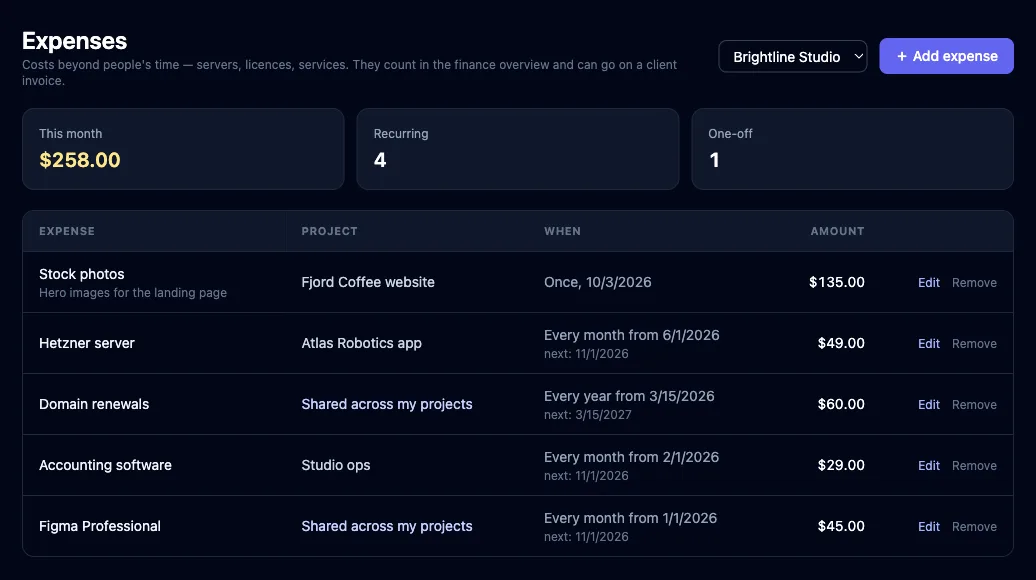
Expenses count in the finance overview, and the ones on a client's project can go straight onto that client's invoice.
The finance overview
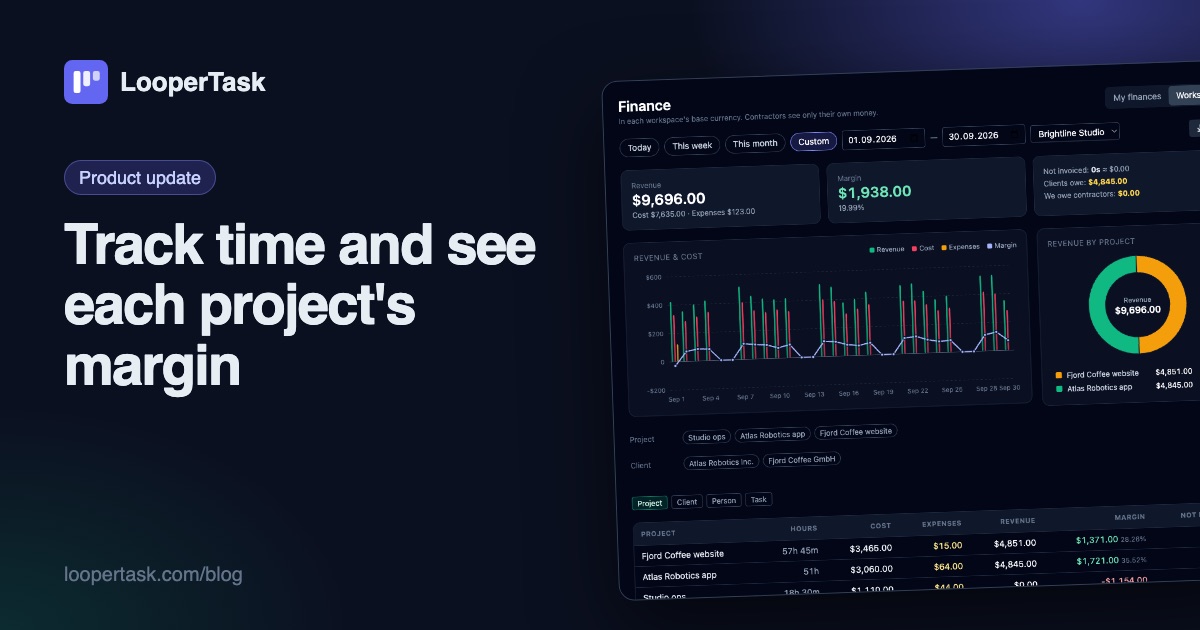
This is where it comes together. For any period you see revenue (what your issued client invoices bill for the hours worked in that period, before tax), cost (tracked hours at each person's rate, or the salary for people on a fixed monthly one), expenses, and the margin that's left. Next to them: hours not invoiced yet with an estimate of what they're worth, what clients still owe, and what you owe contractors.
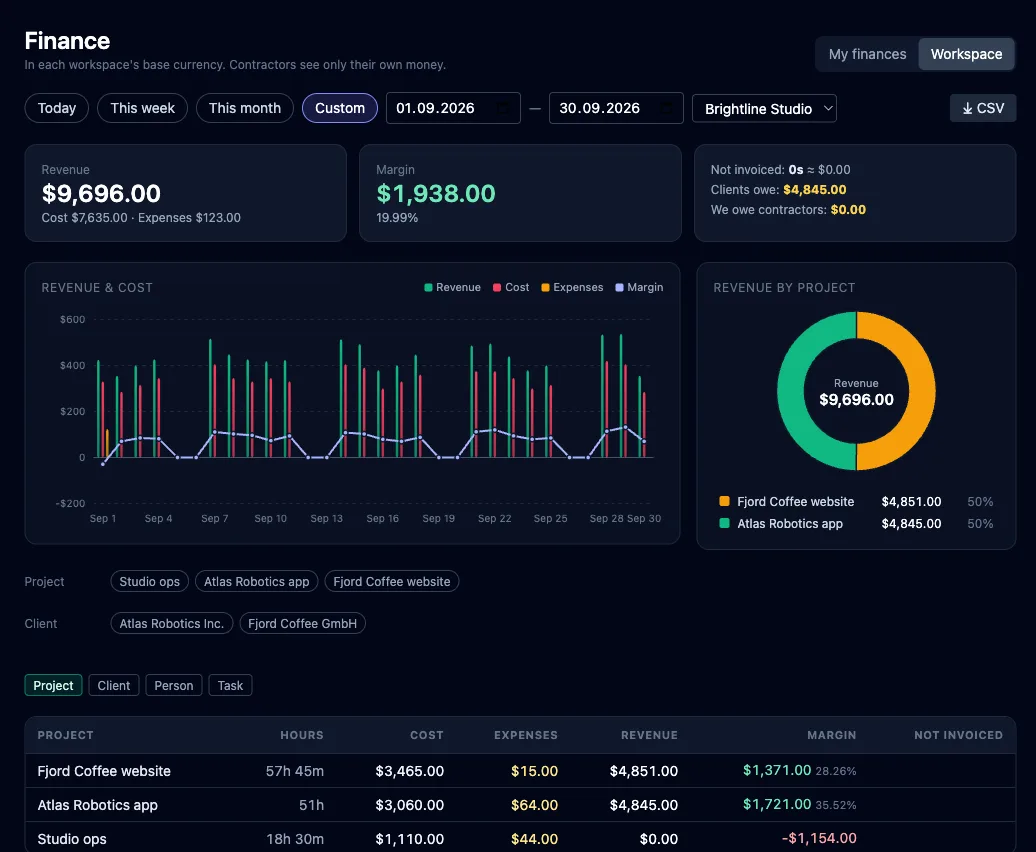
Below the chart you can filter by project or client and group the table by project, client, person or task. In the September example, Studio ops shows a negative margin. That's expected for internal work, and seeing it next to the client projects is the point. Need it in a spreadsheet? There's a CSV export.
Contractors use the "My finances" tab: what they earned, what they invoiced, what's been paid and what's still pending.
Who sees the money
In the finance overview, a project's numbers are shown only to the person who owns the project and manages its workspace. Board members don't see them, and neither do system admins. Contractors only ever see their own pay and their own invoices.
Getting started
Time tracking and finance are modules, and your plan decides which ones you have; pricing shows the details. To get going, follow the quickstart, invite your team, set the rates on "Pay and markup", and let a week of tracked hours fill the overview.
More from the blog
-
New sidebar navigation in LooperTask
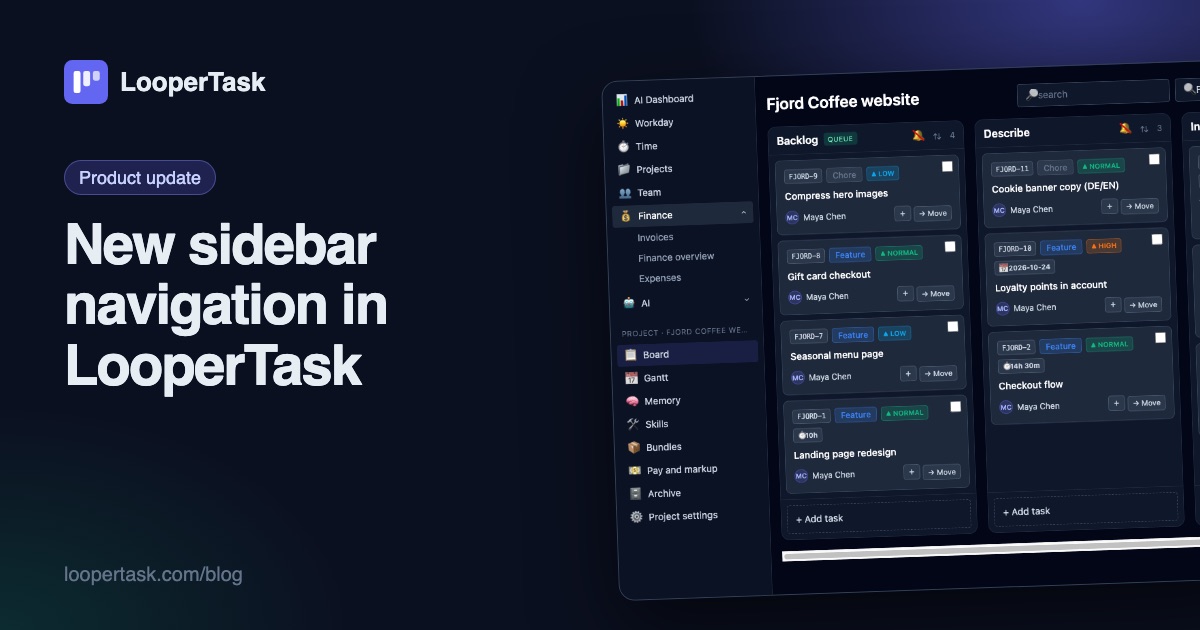
The top menu moved into a sidebar on the left: everyday sections, a project block with the board and Gantt, and one click to collapse it.
-
Turn tracked hours into a client invoice
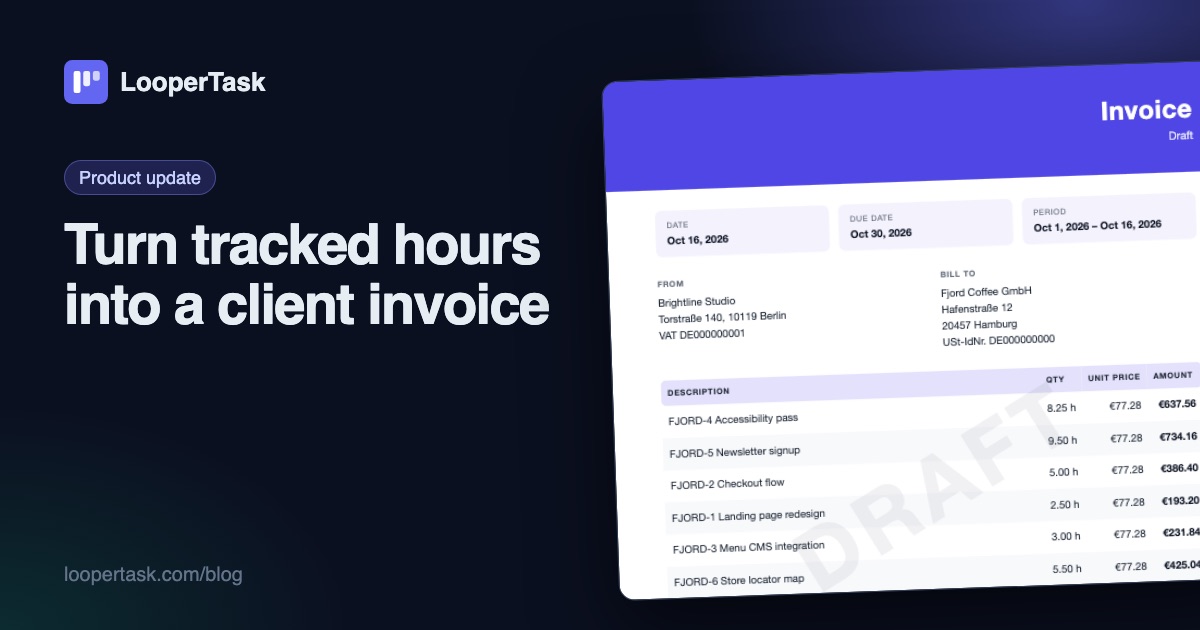
LooperTask now builds invoices from the hours you track: add items, discounts and expenses, pick a template, and download a PDF ready to send.
-
A Harvest alternative with a task board
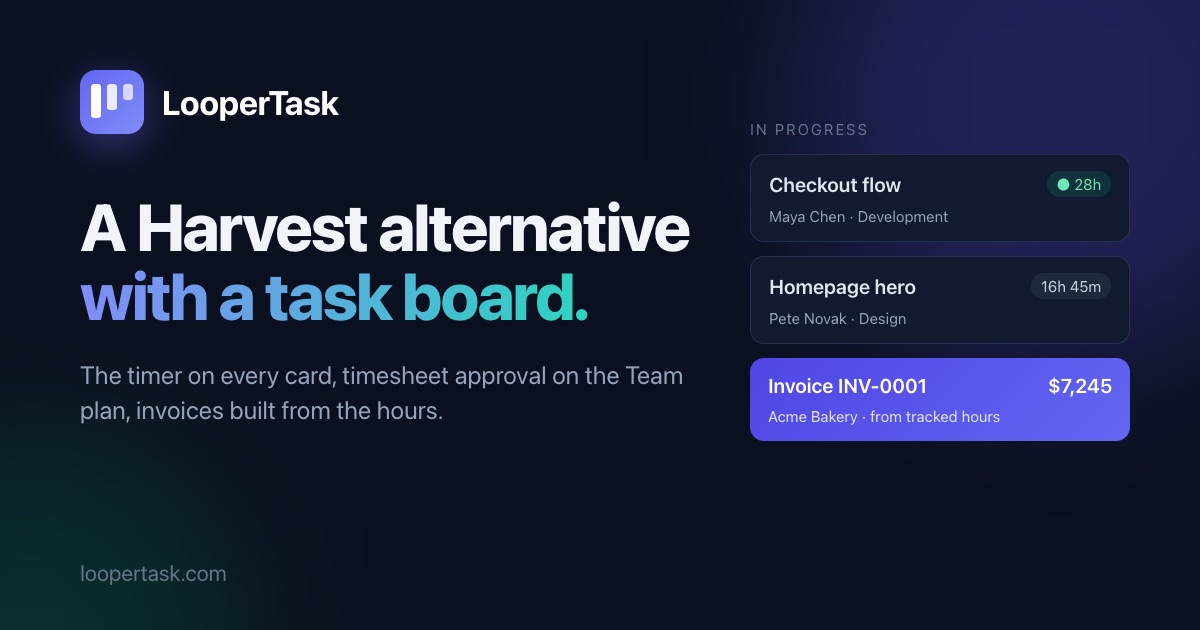
Looking for a Harvest alternative? LooperTask puts the timer on kanban cards and includes timesheet approval in its Team plan.