How to migrate from Harvest to LooperTask
A step-by-step guide to migrate from Harvest: export your time and invoices as CSV, check the import preview, then bring it all into LooperTask.
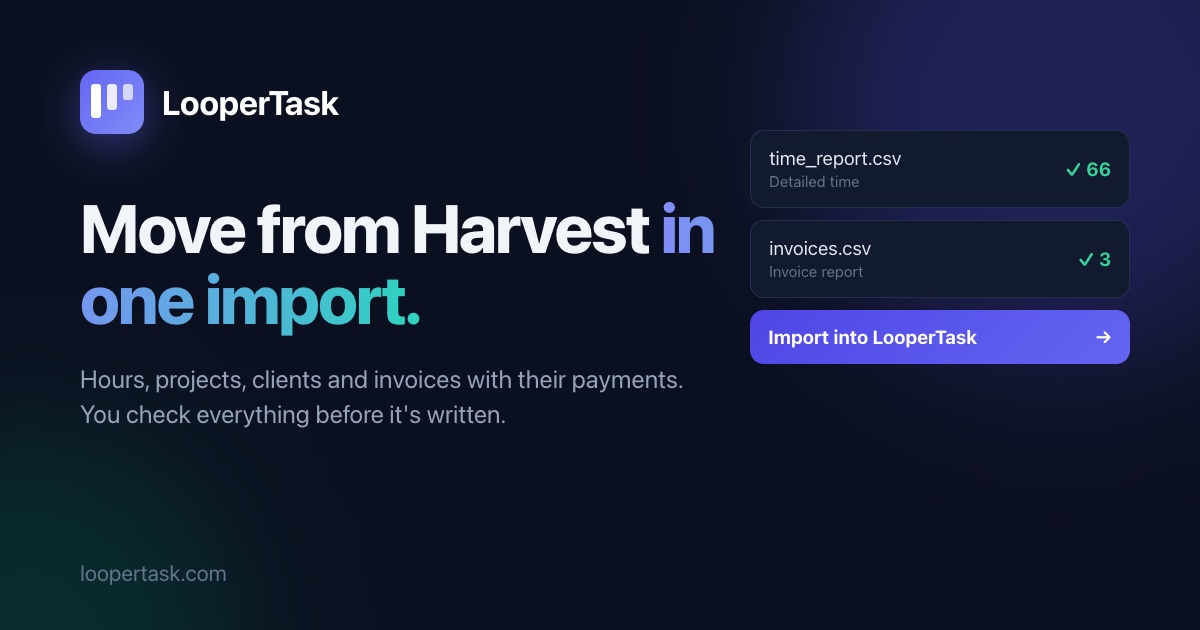
What usually keeps a team on Harvest is the history: years of hours, invoice numbers your accountant already knows, a payment that came in last week. This guide shows how to migrate from Harvest to LooperTask and keep all of it. You export two CSV files, look at a preview and press Import. Nothing is written until that last click.
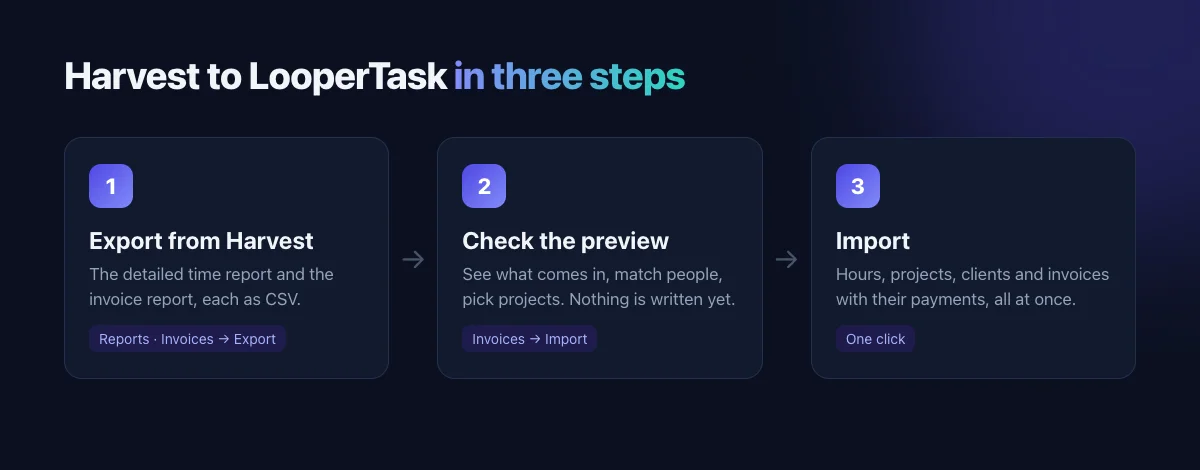
Before you start
The workspace owner or an admin runs the import, so sign in as one of them.
Invite your team first. Harvest's time export has first and last names but no email addresses, so LooperTask matches each person by their full name against the members of your workspace. Make sure people's names in LooperTask are spelled the way Harvest has them. Anyone who doesn't match shows up as "not on the team", and you pick who they are by hand.
Save your usual payment terms. Harvest's invoice export has no due dates, so LooperTask gives imported open invoices your usual terms, counted from the issue date. Those are the terms you saved with "Make it my default" in the invoice editor. If you never saved any, imported invoices come in without a due date and never show as overdue.
Check the plan as well. Free is one user and one project, so a team's history needs the Team plan, or Solo if it's only you. If the plan has no room for the projects an import would create, the preview says so before anything happens.
Step 1: export from Harvest
You need two files.
Time
In Harvest, go to Reports → New report → Detailed time. Pick a custom timeframe that covers what you want to keep and ends yesterday (more on why below), then Export → CSV. You get one row per time entry: the date, person, client, project, task, notes, hours and whether it was billable. Settings → Import/Export → "Export all time" gives the same file for the whole account.
One upload takes up to 50,000 rows and 20 MB. If years of history make the file bigger, export and import a year at a time.
Invoices
Go to Invoices → Report → New report and keep "Invoice report". Pick the timeframe, untick Draft under Status, then Run report → Export → "Export invoices to CSV". That gives one row per invoice with its number, client, issue date, amount, what's been paid and when. The other options in that menu (PDFs and line items) aren't something LooperTask can read, and neither is "Export all invoices" under Settings, which is a ZIP of PDFs.
Upload the two files one at a time, or zip them together and upload the ZIP.
Step 2: check the preview
In LooperTask, open Invoices and press Import. Choose the CSV or the ZIP. LooperTask reads it, tells you it found a Harvest export, and shows what the import would do.
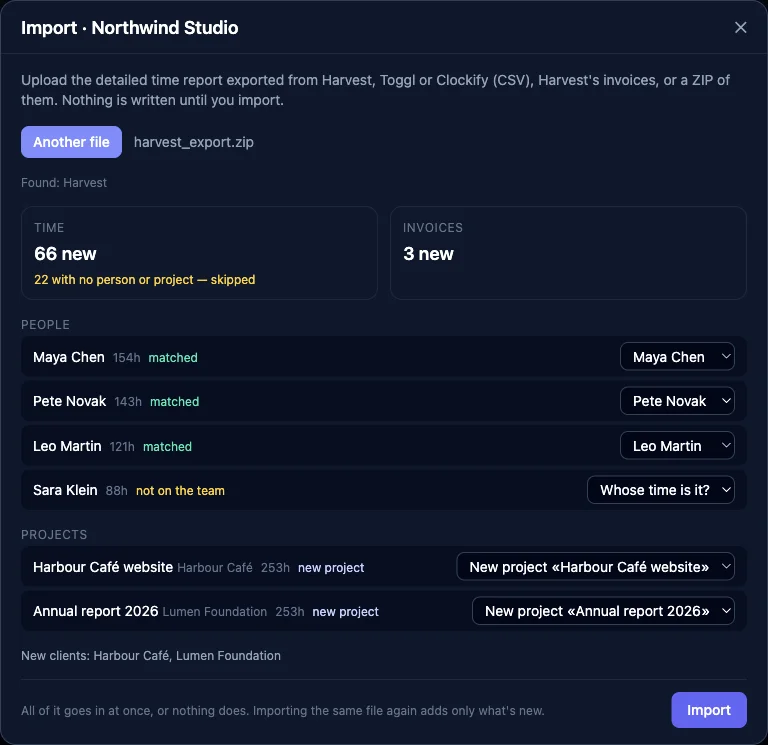
At the top are the counts: how many time rows and invoices are new. Rows that can't go in are counted with the reason. In the example, 22 rows have no person yet, because Sara isn't on the team. Other reasons you might see are days that haven't come yet, or weeks that were already sent for approval.
Under People, a matched name is ready to go. For anyone marked "not on the team", open "Whose time is it?" and pick a member, or choose "Leave out" to skip their hours.
Under Projects, each Harvest project is listed with its client and hours. If you already have a LooperTask project with the same name (and the same client, or none), the time goes there. The rest become new projects, and their clients are listed under New clients. You can point any project at another one you have, or leave it out.
Two more things can come up. If your dates read both ways (is 05/10/2026 May or October?), you pick month first or day first. And invoices in a currency other than the workspace's ask for the exchange rate.
If something looks off, fix the file and choose "Another file". Nothing has been saved yet.
Step 3: import
Press Import. Either all of it goes in or none of it does, so you can't end up with half an import.
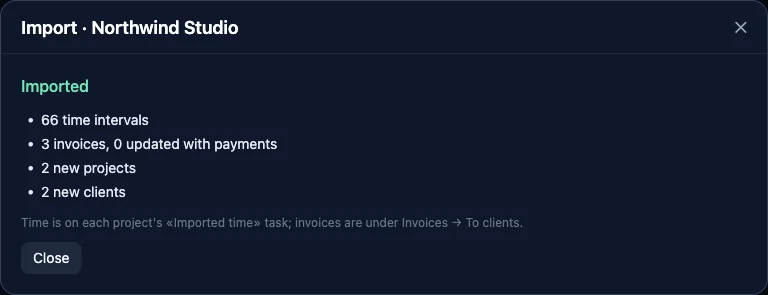
The time lands on a task called "Imported time" in each project, with its notes and the billable flag. Harvest's export gives each entry's date and hours but not when it started, so LooperTask lays a person's entries for the day end to end from 09:00 in your workspace's time zone. If someone already tracked time in LooperTask that day, the imported hours fit around it.
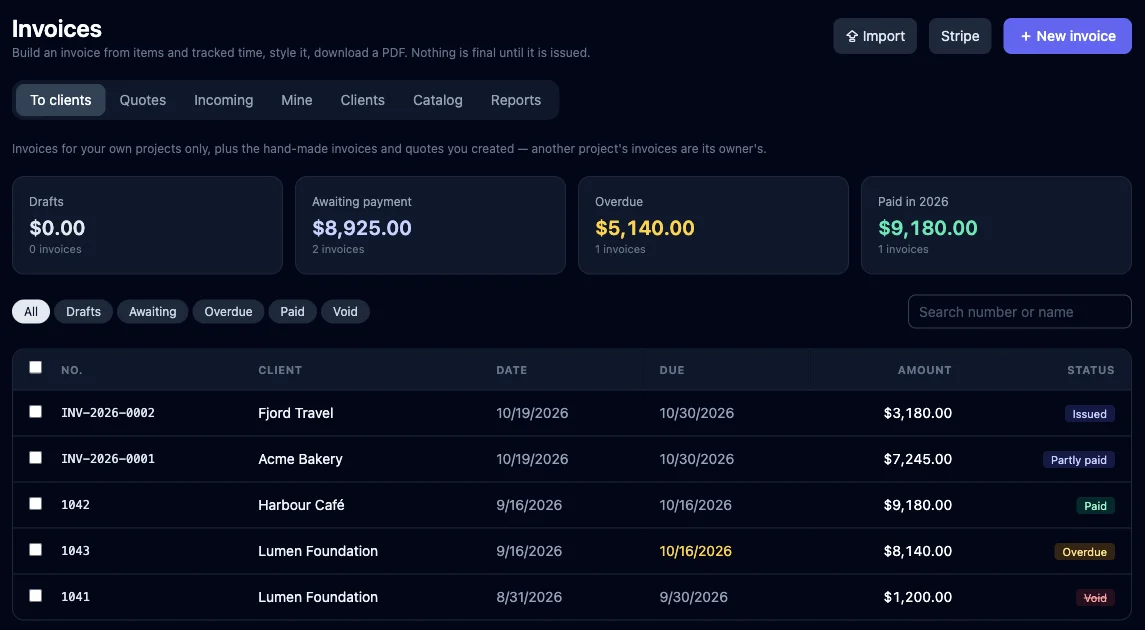
The invoices show up under Invoices → To clients with their Harvest numbers. Harvest's CSV has no status column, so LooperTask reads the status from the money:
- Paid in full: it comes in paid, on the date of the last payment.
- Part paid: it stays open with that payment recorded, and it's overdue once your usual terms have run out.
- Nothing paid and nothing left to pay: Harvest wrote it off, so it comes in void.
- Part paid and the rest written off: it comes in open with the payment, and the preview points it out so you can deal with the rest.
Each imported invoice has one line with its subject and the amount before tax, with the tax on top. Reminders are off for imported invoices, so no client gets an email about an old bill.
Importing again later
You don't have to switch on one day. Keep tracking in Harvest for a couple of weeks if you like, and import again. A file you've imported before only adds what's new: rows and invoices that are already here are skipped, and an invoice that got paid in the meantime gets the payment.
There's one catch. Harvest rows have no ids, so LooperTask can't tell an edited row from a new one. Once a person's day has been imported, it takes no more rows from Harvest. That's why the first export should end yesterday: a day still in progress would lose whatever gets added to it later. If someone edits an imported day in Harvest, the preview says it skipped that day. Delete that day's imported time and import again.
What stays in Harvest
Rates stay behind. Set what you pay people under Team → Pay, and what clients pay under Team → Work types and client rates.
Harvest's Task column (Design, Development and so on) doesn't turn into kinds of work. All imported hours sit on the "Imported time" task, and you pick the kind of work on new entries from here on.
Expenses, estimates and the line items of old invoices aren't imported. Invoice totals and payments are, and those are what your receivables need.
After the import
Open a project's board. The "Imported time" task holds the history, and new work goes on new cards with the timer. If managers should sign off on hours, switch on Team → Timers → Timesheet approval.
Still deciding? A Harvest alternative with a task board compares the two tools in detail, and the LooperTask vs Harvest page lists the differences with sources. Plans are on the pricing page.
More from the blog
-
A Harvest alternative with a task board
Looking for a Harvest alternative? LooperTask puts the timer on kanban cards and includes timesheet approval in its Team plan.
-
New sidebar navigation in LooperTask
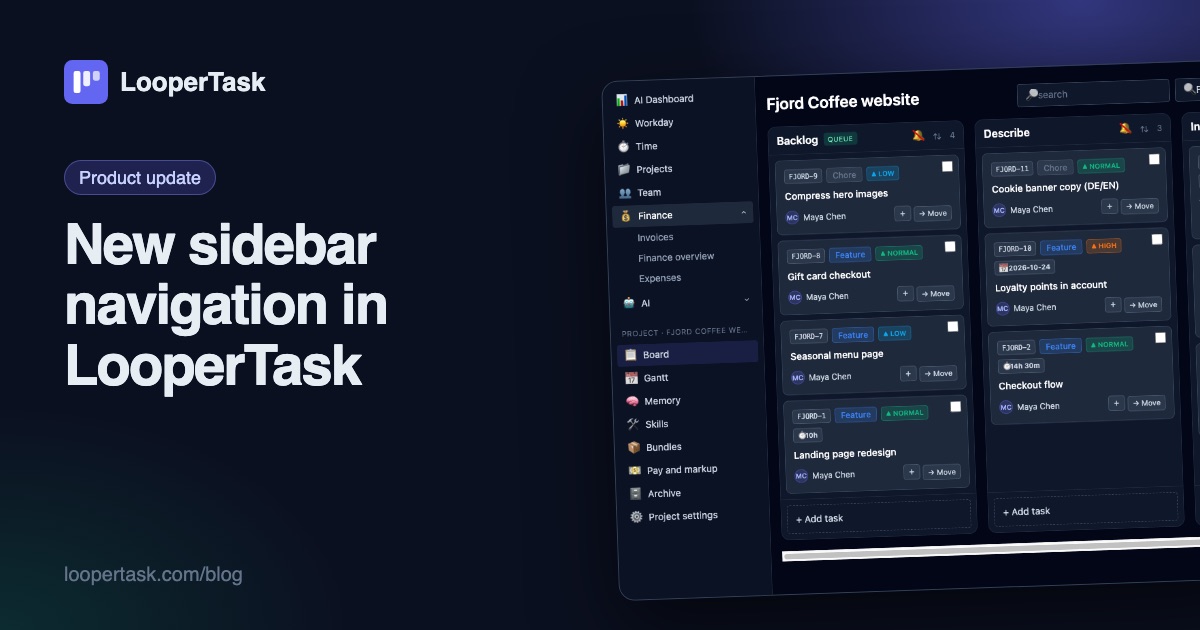
The top menu moved into a sidebar on the left: everyday sections, a project block with the board and Gantt, and one click to collapse it.
-
Turn tracked hours into a client invoice
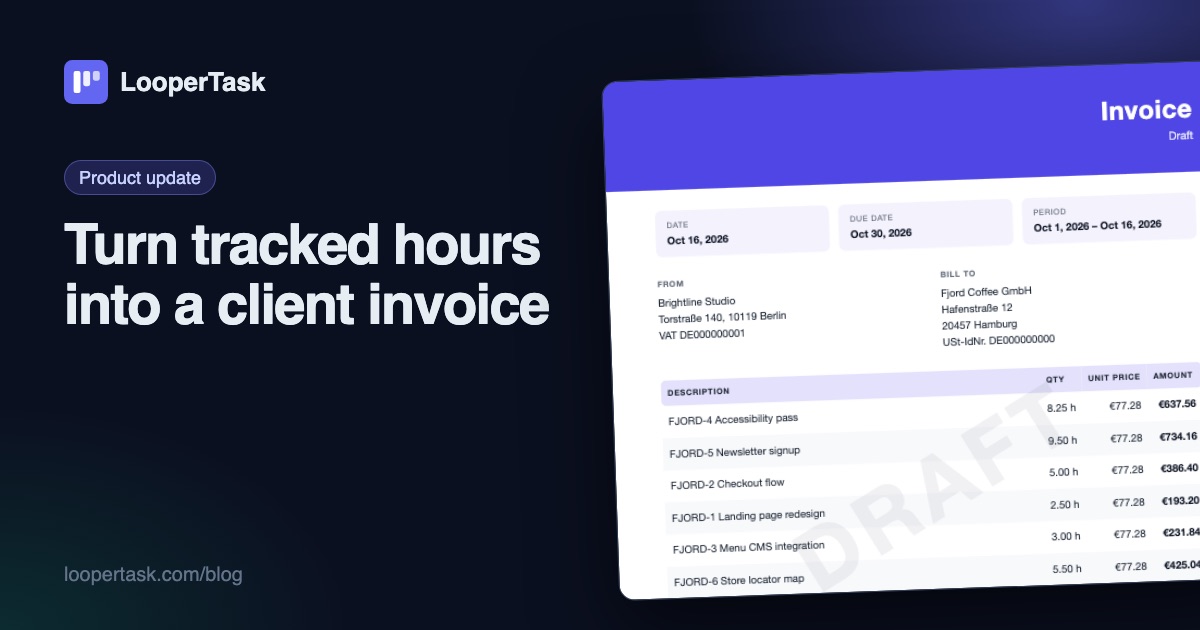
LooperTask now builds invoices from the hours you track: add items, discounts and expenses, pick a template, and download a PDF ready to send.