Turn tracked hours into a client invoice
LooperTask now builds invoices from the hours you track: add items, discounts and expenses, pick a template, and download a PDF ready to send.
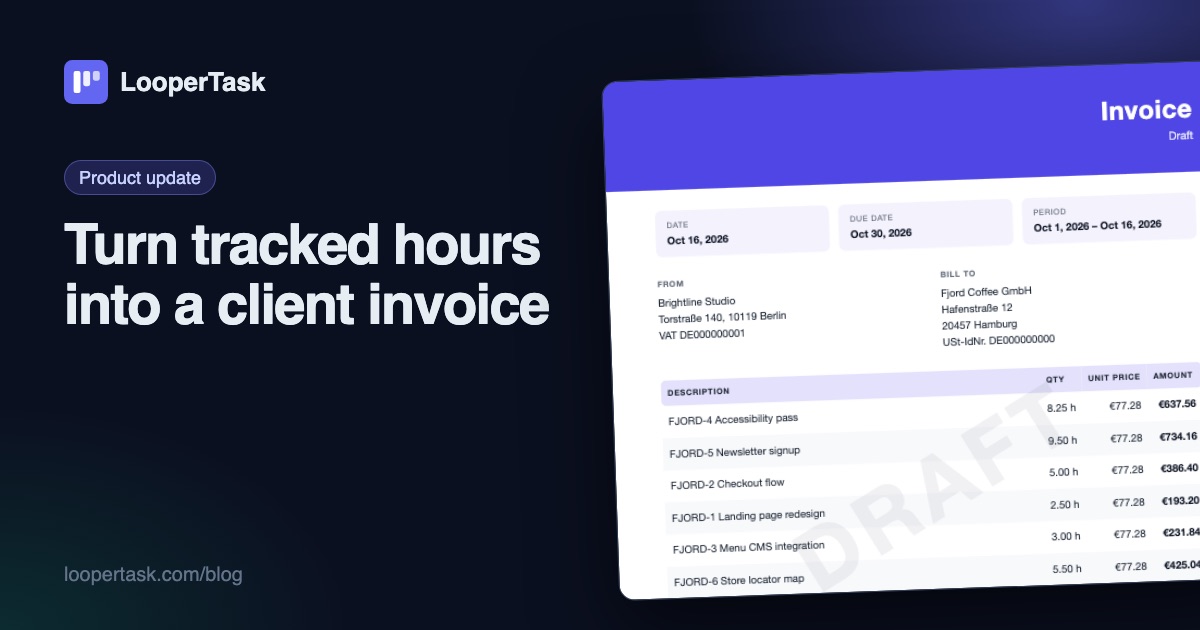
If you track time in LooperTask, billing a client used to mean exporting hours and retyping them somewhere else. That got old fast. The new invoice builder takes the unbilled hours from a client's projects, turns them into lines you can edit, and gives you a PDF you can send the same afternoon.
Start from the hours you tracked
Open Finance → Invoices and click New invoice. Pick the client, choose "Tracked time", and set the period. The "Last month" and "This month" buttons fill in the dates, which covers most months.
Then decide how the hours should read on the invoice. "By task" gives one line per task, so the client sees FJORD-4 Accessibility pass · 8.25 h. "By person" gives one line per team member. "One line" is a single total for the period, for clients who only care about the number.
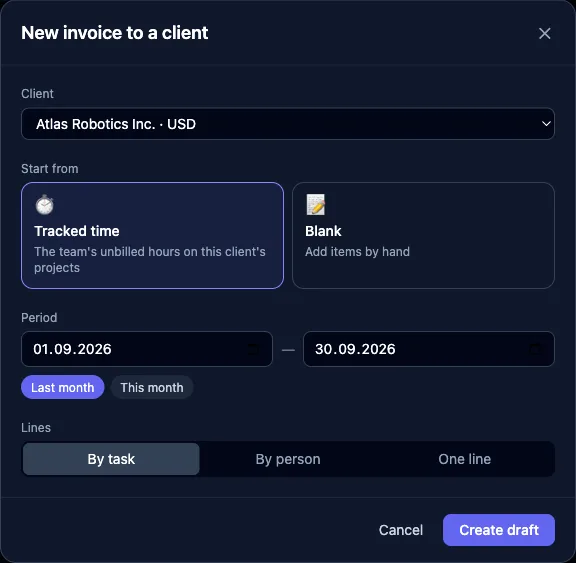
You can also start from "Blank" and type everything by hand. And if you work inside somebody else's workspace as a contractor, the same button opens "New invoice for my work": it bills your own unbilled hours at your rate, or one month of a fixed salary.
Edit it like a document
The draft opens with the lines on the left and the finished invoice on the right. Whatever you change shows up in the preview right away and is saved on its own.
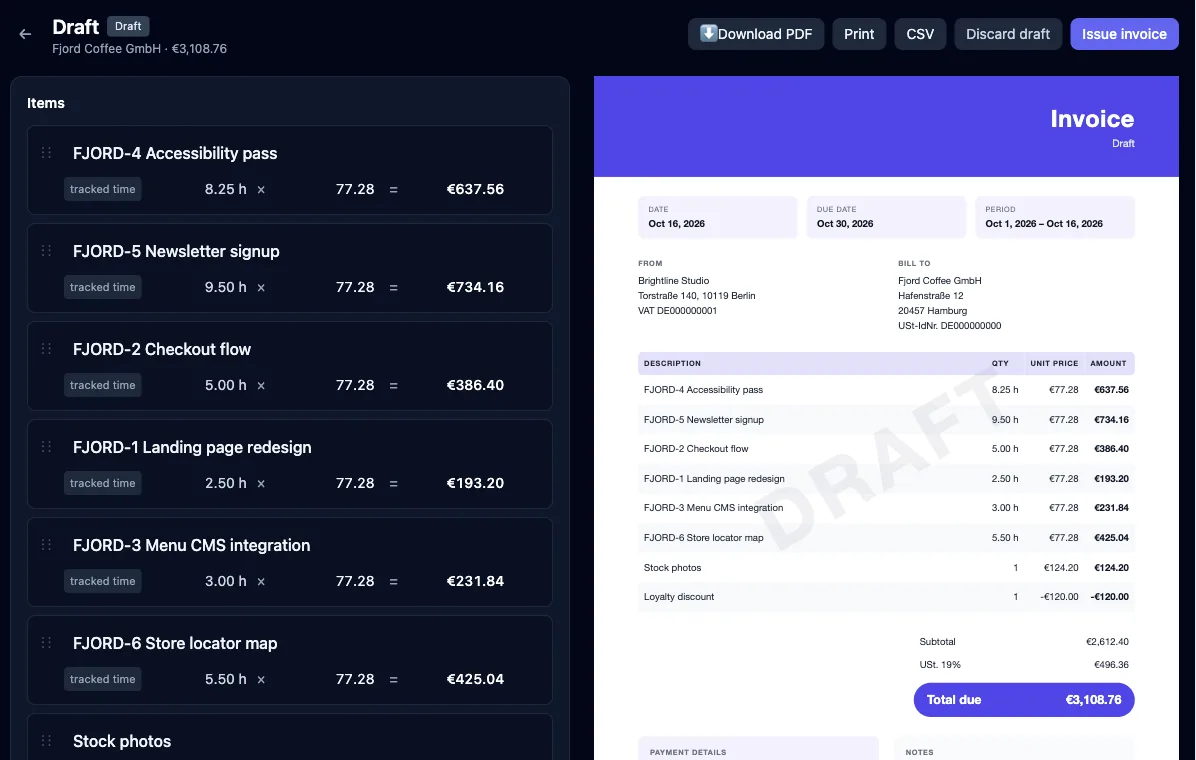
Under the lines there are four buttons. "Item" is for anything that isn't hours, like a licence, a fixed-price workshop or a hosting fee, with your own quantity, unit and price. "Discount" adds a negative line. "Add time" pulls in billable hours that aren't on any invoice yet, which is handy when the last days of the month were tracked after you created the draft. "Expense" brings in costs you logged on the client's projects (stock photos, a server) as a regular item you can rename or reprice.
You can drag lines into any order. If you remove a tracked-time line, those hours become billable again, so they can't get lost or end up on two invoices.
The rest is the paperwork every invoice needs: your details and the client's, invoice date and due date, the tax rate and its name (VAT, USt., whatever your country calls it), payment details and a note.
Make it look like your company
The "Look" section has three templates: Classic, Modern and Minimal. Pick an accent colour, upload your logo (PNG, JPG, SVG or WebP), choose the document language (English, German or Russian), and add a closing line with your address or website.
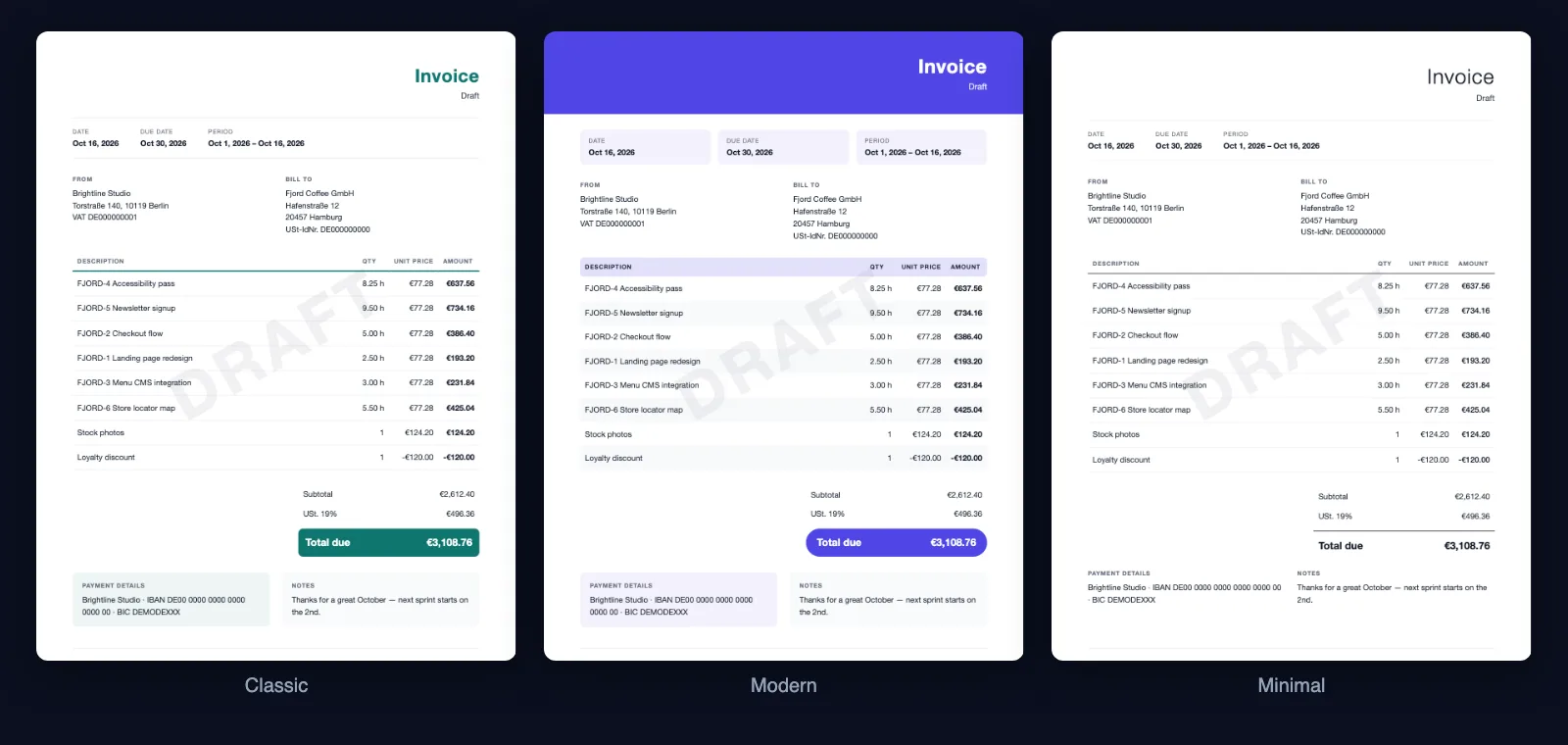
Once it looks right, click "Make it my default". New invoices then start with that look, and with your payment details, tax and terms already filled in.
Other currencies and the PDF
A client can pay in their own currency. Say Fjord Coffee pays in euros and your workspace counts in dollars: you enter the exchange rate when you create the invoice, and it stays fixed in that invoice. Next month's rate won't rewrite September's numbers. Tax goes on top of the subtotal as its own line.
When you're done, click Download PDF. You can also print it, or export the lines as CSV if your accountant prefers a spreadsheet.
Issue it, then mark it paid
A draft is yours to change as often as you like. "Issue invoice" gives it a number and freezes it. After that it can be voided, but not edited. Tracked hours are locked from the moment they land on an invoice, even a draft: each task's time log marks them "invoiced", so the invoice and the time records always agree. Remove a line from the draft and its hours are free again.
When the payment arrives, mark the invoice as paid. It drops out of "Clients owe" in the finance overview, where you also see revenue, cost and margin for each project.
Who sees what
Client invoices are handled by the workspace's owner and admins. Revenue, cost and margin per project are stricter: the finance overview shows them only to the person who owns the project and runs its workspace. Someone who only has access to the board sees none of it, and neither does a system admin. Contractors only see their own invoices and their own pay.
Try it
The invoice builder is live now on every plan that includes invoices; pricing lists what each plan has. New to LooperTask? The quickstart gets a board running in a few minutes. Track a week of work, then send your first invoice on Friday.
More from the blog
-
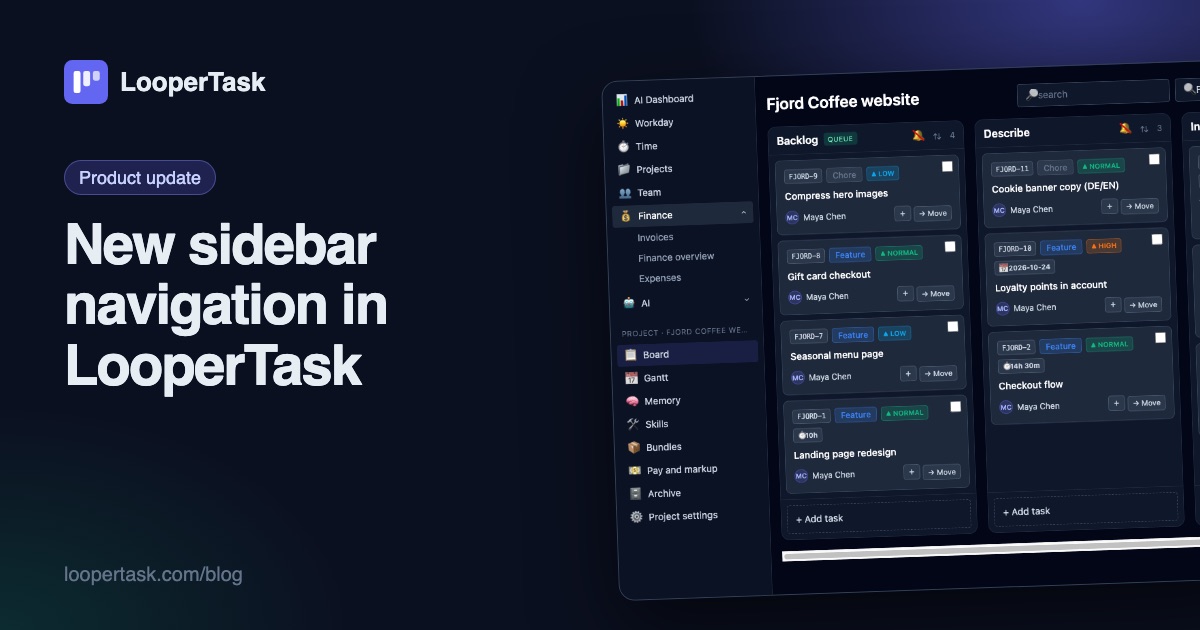
New sidebar navigation in LooperTask
The top menu moved into a sidebar on the left: everyday sections, a project block with the board and Gantt, and one click to collapse it.
-
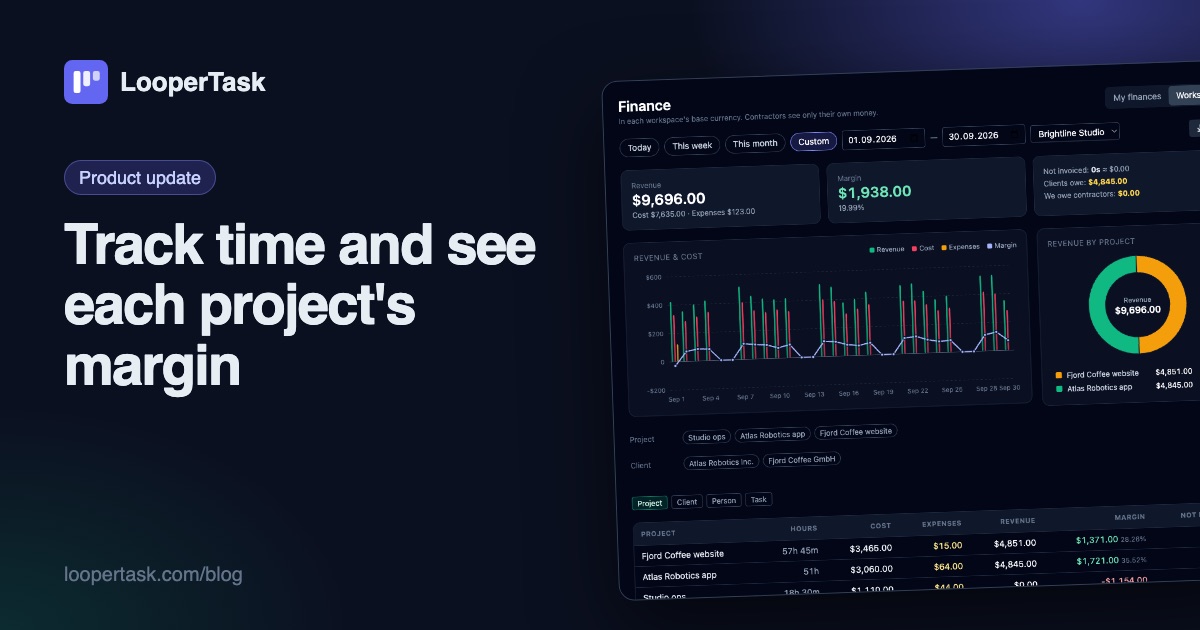
Track time and see each project's margin
Timers on every task, a Workday view, rates and markup per project, expenses, and a finance overview with revenue, cost and margin per project.
-
A Harvest alternative with a task board
Looking for a Harvest alternative? LooperTask puts the timer on kanban cards and includes timesheet approval in its Team plan.